

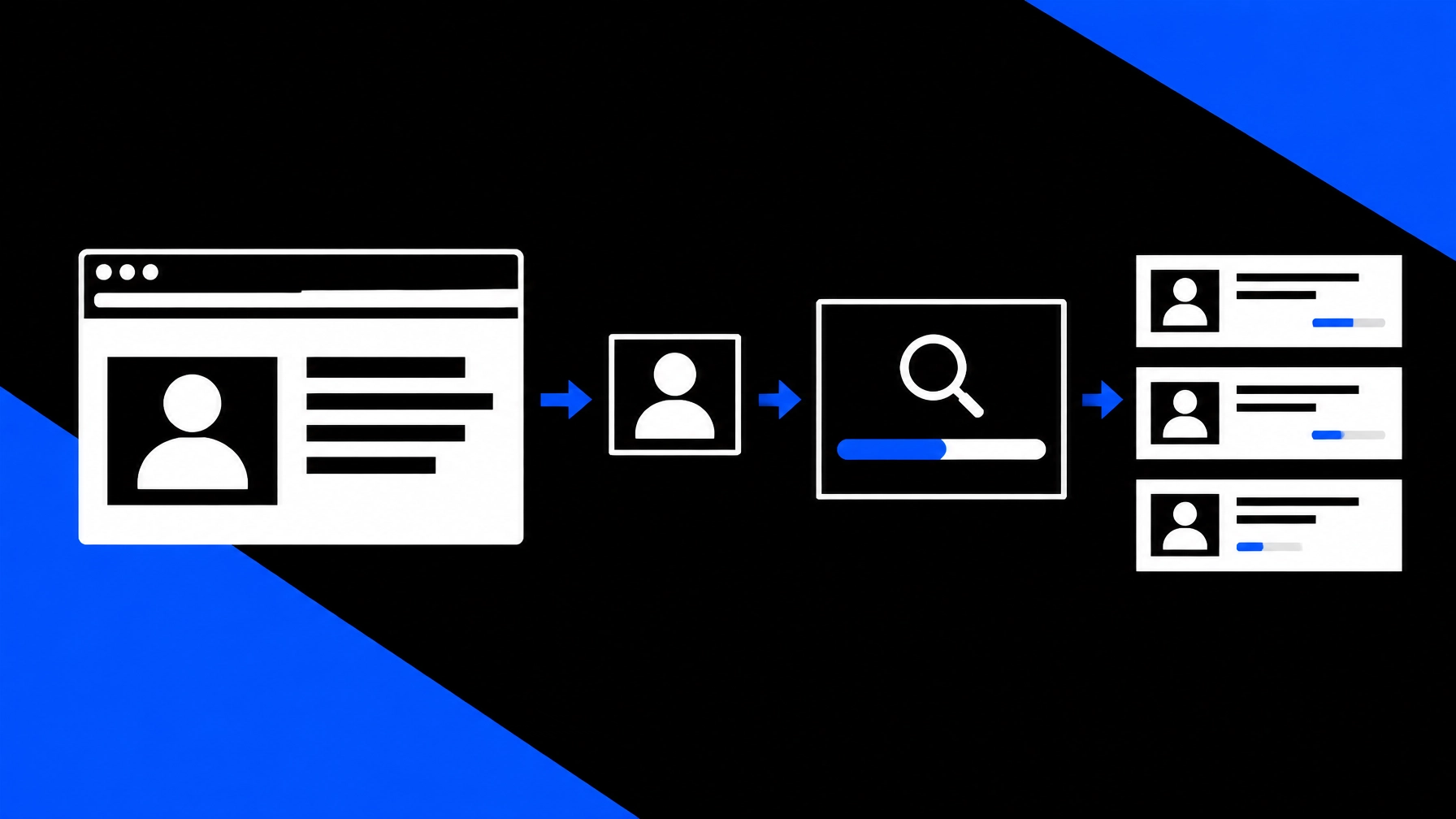
See a profile photo or listing image that needs a closer look? SafetyCamAI’s browser workflow lets you capture or select an image, submit it for a reverse image search, and review visually similar results and public source links, typically in about five seconds. You can check a photo without first moving your work to another device or waiting days for a traditional background report.
Start with SafetyCamAI: free to try, with five lookups per week and no credit card required.
Keep the check close to the page you are reviewing
Browser-based review can be useful when you are already working from a laptop. You might be looking at a marketplace listing, a public profile, or a page shared with your team. Instead of asking someone to send you the original image, you can use a screenshot or other existing image as the search input.
A practical workflow looks like this:
- Review the page. Note what you are checking and why. Follow your organization’s rules and make sure you are permitted to use the image.
- Capture the photo. Use the extension’s available capture option, or take a screenshot using your usual browser or operating-system tools.
- Crop carefully. Keep the person’s face clear and avoid including unrelated personal information where possible.
- Upload the image. Submit the selected image through the SafetyCamAI workflow.
- Review the results. Open source links, compare context, and record what supports or conflicts with the possible match.
The exact controls may depend on the current extension interface. Before installing, find the official SafetyCamAI listing in the Chrome Web Store and confirm the publisher and requested permissions. Do not install unofficial copies or grant access you do not understand.

Use a screenshot when requesting the original is impractical
An image visible in a browser may not be available as a convenient file. It could be embedded in a listing, displayed inside a dashboard, or part of a public profile page. A screenshot gives you a usable copy of what you can already see, without depending on another person to send the image.
That convenience has limits. A screenshot can be compressed, cropped, or obscured by overlays. It may also include other people or identifying details. Before you search, crop to the relevant image and check that the face is large and clear enough to review. SafetyCamAI recommends a forward-facing, well-lit face photo without sunglasses, hats, or masks for the best chance of useful results.
A screenshot is an input, not proof of what happened or who owns the account. Keep the original page available so you can compare any result with the surrounding information.
Where a browser-based check can fit
Marketplace listings. If you are reviewing an item from your laptop, a listing photo can be checked before you arrange a pickup. A visually similar image elsewhere online may suggest that a photo is reused, but it does not establish that the seller is the person shown or that the listing is fraudulent. Confirm details through the marketplace and use safe transaction practices.
Recruiting or leasing teams reviewing public pages. A browser workflow can help organize a permitted image review, but it must not become a shortcut for eligibility decisions. A facial similarity result is not a consumer report. Never use SafetyCamAI results as the sole basis for employment, housing, credit, insurance, or other eligibility decisions.
Desktop incident review. Teams reviewing a browser-based camera dashboard or incident page can work from an existing screenshot or exported frame. No new camera hardware or NVR integration is required to submit an image. You still need authorization to access and use the image, along with a process for handling sensitive material.
For each use case, apply the same standard: search only when you have a legitimate reason, then review the source context before deciding what the result means.
Read match signals as leads, not conclusions
SafetyCamAI searches publicly available sources for visually similar images. Results can include confidence information and direct source links, typically within seconds. A similarity score helps prioritize what to inspect; it does not confirm a person’s identity.
Open each relevant source and compare details such as dates, names, setting, image quality, and whether the page actually refers to the person or event you are reviewing. Look for conflicts as well as matches. A photo may be reused, mislabeled, outdated, or unrelated to the person who posted it.
A missing result is not clearance, either. The image may be low quality, the relevant page may not be publicly available, or the search may not surface it. Treat a match as a lead that needs review and no match as an inconclusive result.

Browser access does not mean on-device processing
A browser extension can make it easier to capture an image from a page. That does not automatically mean the image search itself happens only on your device. SafetyCamAI’s privacy policy explains that submitted face images and related technical data may be processed to provide the search. Review the Privacy Policy before submitting an image, particularly if you are handling someone else’s photo or sensitive case material.
Chrome also explains that extensions declare permissions in their manifest, and some permissions trigger user warnings. You can read its permissions guide before installation. Check what the extension requests, and grant only the access needed for the task.
SafetyCamAI describes its searches as confidential: it says it does not monetize personal information and does not operate pay-to-remove schemes. The service also offers exportable evidence packets with screenshots, source links, and confidence data for review and handoffs. These features support a more accountable workflow, but they do not replace your organization’s retention, privacy, or access-control policies.
Choose a tool that fits your workflow
The Chrome extension is one way to reach SafetyCamAI alongside web, iOS, and Android options. It is intended for browser-based work; you can use an existing photo or screenshot without installing camera hardware or connecting an NVR.
- Results in about five seconds: Match signals typically appear within seconds, depending on the image and connection.
- Five free lookups per week: Start without a credit card.
- Accessible pricing: SafetyCamAI says its pricing can be up to 75% lower than competitors.
- Source-linked results: Open public source pages and assess the context yourself.
- Evidence export: Preserve screenshots, links, and confidence information for audit-ready review.
Speed helps you move through an initial check. It does not remove the need for human judgment. Use the extension to capture and organize information, then make decisions through your established review process.
Frequently asked questions
Can I check a photo from a browser page?
Yes. The browser workflow is designed to help you capture or select an image visible on a page, submit it for reverse image search, and review the results. The exact capture controls depend on the current extension interface.
Do I need an NVR or special camera hardware?
No. You can use an existing photo or screenshot. A hardware integration is not required to submit an image for review.
How quickly do results appear?
SafetyCamAI says results typically appear in seconds, around five seconds in many cases. Image quality and network conditions can affect processing time.
Does a high confidence score confirm someone’s identity?
No. A score indicates visual similarity, not verified identity. Check the source links and surrounding context, and corroborate important details independently.
Does no match mean the person has been cleared?
No. A search may not find relevant public images. No match is inconclusive, not clearance.
Is SafetyCamAI a background-check or consumer-reporting service?
No. SafetyCamAI is not a consumer reporting agency and does not provide a background check. Do not use results to make employment, housing, credit, insurance, or other eligibility decisions.
Is there an Android app?
Yes. SafetyCamAI is available on Android, alongside browser and iOS options.
Start with a photo you are authorized to review
Use a clear image, capture only what is relevant, and verify every promising source before acting. SafetyCamAI can help you move from a browser page to reviewable match signals in seconds, but the results remain leads, and the reviewer remains responsible for the decision.
Visit SafetyCamAI to start with five free weekly lookups and no credit card.
Android user? Get SafetyCamAI on Google Play:

FCRA notice: SafetyCamAI is not a consumer reporting agency and does not provide consumer reports or background checks. Do not use its results to make decisions about employment, housing, credit, insurance, or other eligibility. Results are visual similarity leads that require human review.
Read more from SafetyCamAI
- Reverse Image Search for People vs. Background Checks: Which Is Better Before You Meet a Stranger?
- How to Verify Someone’s Identity Online in 5 Minutes: No Paid Background Check Needed
- Looking for a Safer First Date or Meetup? Here Are 10 Things a Reverse Image Search Can Tell You
- How to Spot an Online Marketplace Scam Before You Meet the Seller: A Reverse Image Search Playbook
- A Property Manager’s Guide to Screening Unknown Visitors with One Photo