

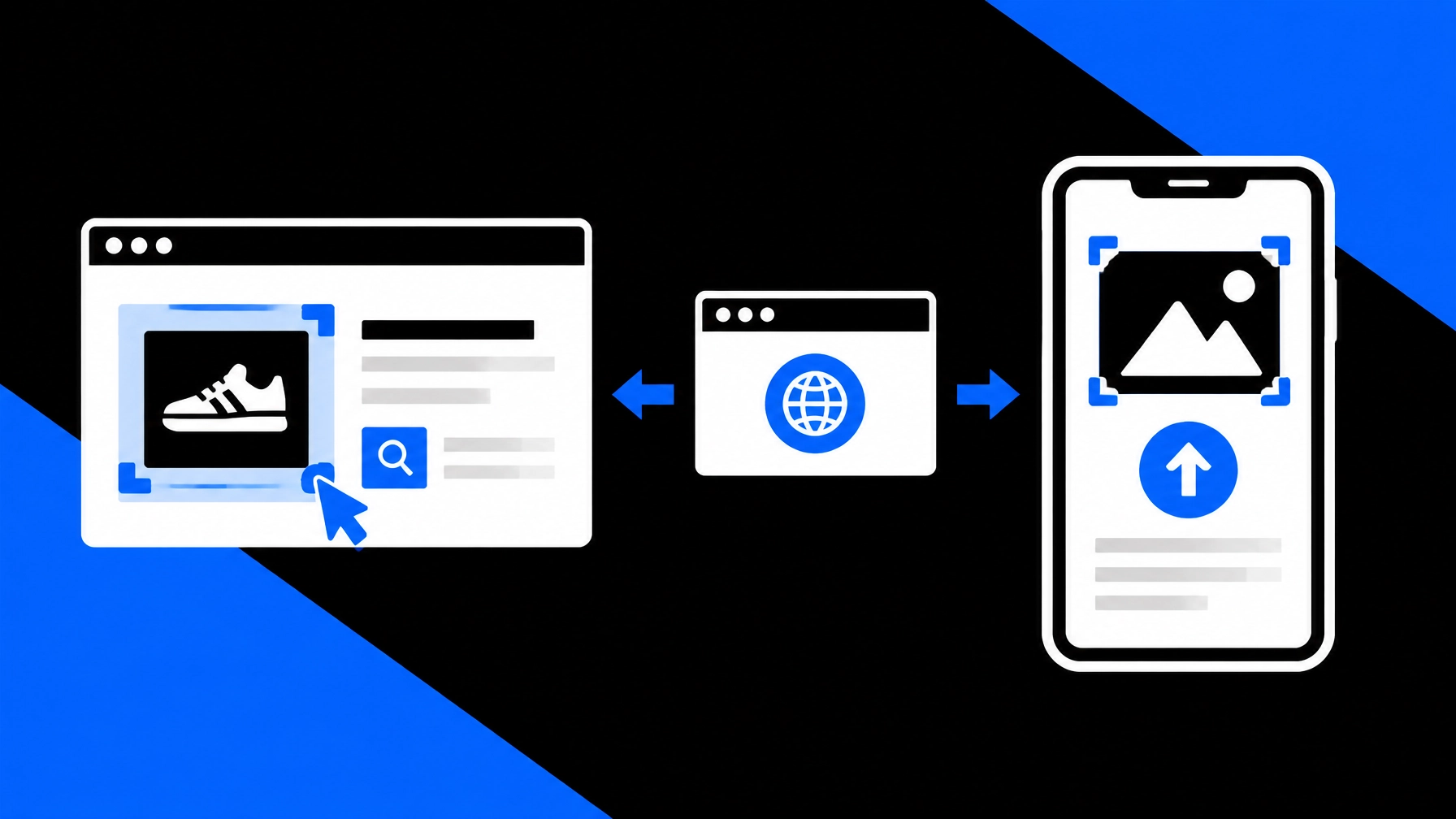
The best way to run a photo check depends on where the image is and what you need to do next. Use the Chrome extension when you are already reviewing an image on your computer. Use the phone app when the image is on your phone or you are in the field. Use the web browser when you want a flexible option without choosing either device.
SafetyCamAI works with existing photos and screenshots. Results typically appear in about five seconds, with visually similar images, source links, and confidence data for you to review. They are leads, not confirmation of identity.
Start with five free lookups per week. No credit card required. Visit SafetyCamAI to choose the workflow that fits your task.
Choose based on where the image is
A tool is most useful when it fits the moment you need it. If you are reviewing a marketplace listing at your desk, moving the image to a phone can add unnecessary steps. If you are about to meet a seller and the relevant photo is on your phone, opening a laptop is not practical.
| Your situation | Recommended option | Why |
|---|---|---|
| Reviewing a marketplace listing on a laptop | Chrome extension | Work from the browser page or an available screenshot. |
| Reviewing a desktop incident image or camera dashboard | Chrome extension | Submit an existing image or screen capture; no NVR integration or new camera hardware required. |
| Reviewing public pages as part of a desktop team workflow | Chrome extension | Keep the image review close to the page and case notes. |
| Checking a photo during a meetup or marketplace handoff | Phone app | Use an image already on your phone or a photo you take in the field. |
| Working away from your desk | Phone app | Keep the capture and check in one mobile workflow. |
| Wanting a device-neutral option | Web browser | Open SafetyCamAI on a browser-supported device and upload an existing image. |
This is a workflow recommendation, not a claim that one format produces more reliable results. The image quality, public availability of related material, and context you can verify matter more than whether you start on a phone or computer.

Use the extension for images already on your computer
Choose the Chrome extension when the image is already open in a browser tab, listing, or desktop review environment. It can make it easier to move from a page you are reviewing to submitting an image or screenshot for a search. This can be useful for marketplace listing reviews, teams checking public pages, or desktop incident review.
You can use an existing photo or screen capture. You do not need an NVR or a special camera integration to submit an image. If you are working from a camera dashboard, follow your organization’s rules for accessing, capturing, and handling that material.
Before you install any browser extension, confirm that you have the official listing and review its permissions. Browser access does not mean the search takes place only on your device. When you submit an image for SafetyCamAI search, it is processed to return search results. Read the SafetyCamAI Privacy Policy before submitting someone else’s image, particularly if it is sensitive or part of a case.
Keep the original page available while you review results. A screenshot can lose useful detail or context, and the result itself does not establish who posted the image or when.
Use the phone app for checks in the field
Choose the phone app when the image is already in your camera roll, arrives in a message, or needs to be captured while you are away from your desk. This is often the more convenient option before a meetup, during a marketplace handoff, or while conducting field work.
A practical mobile workflow is simple:
- Confirm your reason for checking. Use only images you are authorized to review.
- Choose a clear, relevant photo. Crop out unrelated people and personal details where possible.
- Upload and wait for the search. Results typically appear in about five seconds, depending on the image and connection.
- Review the sources. Open links and compare their content with the situation you are evaluating.
- Record your reasoning. Note what supported or conflicted with a possible match before deciding what to do.
The app makes it easier to work from a phone. It does not turn a public-source search into an offline search or make a visual similarity result definitive. If you need to check what happens to uploaded images, consult the Privacy Policy rather than assuming that mobile means local processing.

Use the web browser as the middle option
The web browser is a practical middle ground when you have an image file ready but do not need the extension’s browser-page workflow or the phone app’s camera and photo-library access. Open SafetyCamAI on a supported device, upload the image, and review the results there.
The underlying task remains the same: submit a photo or screenshot, inspect visually similar results, and verify the linked sources. Choose the browser option when it fits your device and working habits. Choose the extension or app when it removes a real step from your process.
Compare the practical differences
Input and convenience. The extension fits images already on desktop pages. The app fits photos already on your phone or images you capture in the field. The web browser accepts an image you can upload from the device you are using.
Speed. SafetyCamAI results typically appear in about five seconds across the product workflow. Speed helps you start a review quickly, but it should not shorten the time you spend checking context.
Privacy and image handling. The extension, app, and web browser are different ways to access the service, not guarantees about where image processing occurs. Review the Privacy Policy and your organization’s image-handling requirements before submitting a photo. SafetyCamAI states that it does not monetize personal information or use pay-to-remove schemes; check the policy for details relevant to your use.
Records and handoffs. For professional workflows, SafetyCamAI offers exportable evidence packets with screenshots, source links, and confidence data. Preserve the packet according to your organization’s retention rules. Include your own notes on what you reviewed and why; an exported result is not a substitute for documented human judgment.
Offline and practical constraints. A reverse image search of publicly available sources requires a connection to submit and retrieve information. Do not assume that the phone app or browser extension can complete that search offline. If you have no connection, wait until you can conduct the check through the service and review results properly.

Treat every result as a lead
A visually similar image may be useful, but it is not identity confirmation. Open relevant source links. Compare the image, context, dates, and available details. Look for information that conflicts with a possible match as carefully as you look for information that supports it.
A confidence score can help prioritize what to review; it cannot tell you on its own what action to take. A search that returns no match is not clearance, either. Relevant images may be unavailable publicly, or the input may be too unclear to produce a useful result. Record the outcome as inconclusive when the evidence does not support a stronger conclusion.
SafetyCamAI is not a consumer reporting agency. Do not use its results as the sole basis for employment, housing, credit, insurance, or any other eligibility decision. For consequential decisions, follow applicable laws and your organization’s review process, and escalate questions to the appropriate supervisor or counsel.
Start with the device that fits the task
Use the extension for laptop-based listing reviews, desktop incident review, and teams reviewing public pages. Use the phone app for meetups, marketplace handoffs, and field work. Use the web browser when you want a straightforward upload option across devices.
All three routes support a practical starting point: an existing photo or screenshot, no NVR or hardware integration, and results typically in seconds. SafetyCamAI offers five lookups per week at no charge and no credit card required; its pricing is advertised as up to 75% lower than competitors. Availability spans iOS, Android, web, and Chrome extension.
Choose your workflow and start a photo check at safetycamai.com. Review the source links before you act.
Android user? Get SafetyCamAI on Google Play:

FCRA notice: SafetyCamAI is not a consumer reporting agency and does not provide consumer reports or background checks. Do not use SafetyCamAI results as the sole basis for employment, housing, credit, insurance, or other eligibility decisions. Results are visual similarity leads and require human review.
Frequently asked questions
Is the Chrome extension better than the phone app?
Neither is universally better. Use the extension when the image is on a desktop page or screenshot. Use the phone app when the photo is on your device or you need to capture it in the field.
Does the phone app search offline?
No. Searching publicly available sources requires submitting an image and receiving results through the service. Do not assume that using a phone means the search is performed only on-device.
Can I use a screenshot from a desktop camera dashboard?
You can submit an existing screenshot, subject to your organization’s permissions and image-handling rules. No NVR or new camera hardware is required. Review source links and preserve records according to your procedures.
How quickly do results appear?
SafetyCamAI results typically appear in about five seconds. Timing can vary with the image and connection. A fast result still requires human review.
Does a match or confidence score confirm identity?
No. Similarity and confidence data are signals to review, not confirmation. Compare source context, check for conflicting details, and document your reasoning.
Does no match mean someone is cleared?
No. A search may not find relevant public images. Treat no match as inconclusive, not clearance.
How much does it cost to try SafetyCamAI?
The free tier includes five lookups per week and does not require a credit card. See SafetyCamAI for current plan details.
Read more from SafetyCamAI
- Reverse Image Search for People vs. Background Checks: Which Is Better Before You Meet a Stranger?
- How to Verify Someone’s Identity Online in 5 Minutes: No Paid Background Check Needed
- Looking for a Safer First Date or Meetup? Here Are 10 Things a Reverse Image Search Can Tell You
- How to Spot an Online Marketplace Scam Before You Meet the Seller: A Reverse Image Search Playbook
- A Property Manager’s Guide to Screening Unknown Visitors with One Photo
- Check a Photo Without Leaving Your Browser: How the SafetyCamAI Chrome Extension Works